Inviting Collaborators
Learn how to invite others to your shares.
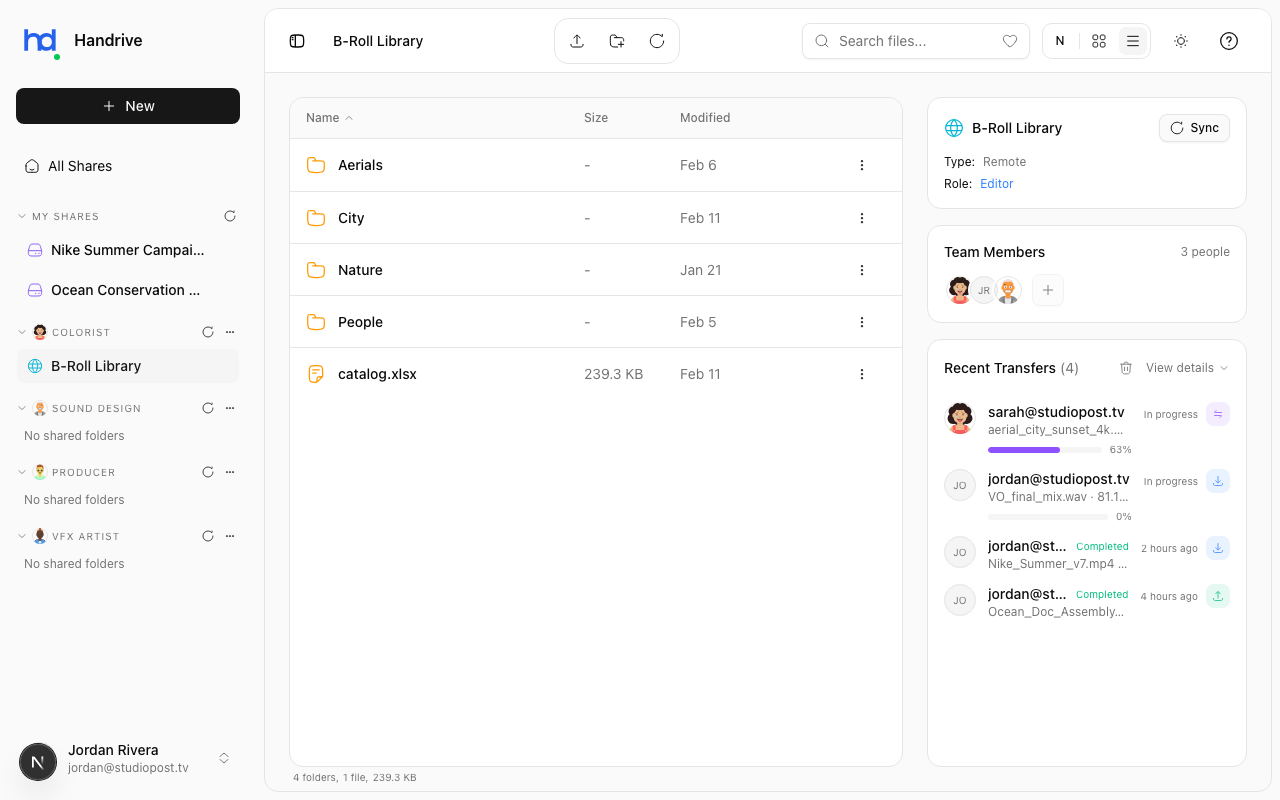
Adding Members
To invite someone to your share:
- Open or select the share
- Click Members (or right-click → Members)
- Click Add Member
- Enter their email address
- Select a role (Viewer, Editor, or Admin)
- Click Add
The person will see your share in their Handrive app under your name.
Choosing the Right Role
| If they need to... | Assign... |
|---|---|
| Just view and download files | Viewer |
| Upload and edit files | Editor |
| Help manage members | Admin |
When in doubt, start with Viewer and upgrade later.
Requirements
For someone to access your share:
- They must have a Handrive account
- Their account must use the email address you invite
- They must be online to browse or download files
What Members See
When you invite someone:
- Your share appears in their sidebar (under your name)
- They can browse the file list
- They can download files based on their role
- They can see other members of the share
Managing Members
View All Members
- Right-click the share → Members
- See the list of all members and their roles
Change a Member's Role
- Open the Members panel
- Click the member's current role
- Select the new role
Remove a Member
- Open the Members panel
- Find the member
- Click the remove button (X or trash icon)
- Confirm removal
note
Only Owners and Admins can add, remove, or change member roles.
Collaboration Tips
- Communicate - Let people know when you've invited them
- Explain permissions - Tell members what they can and can't do
- Review regularly - Remove members who no longer need access
- Use descriptive names - Name your share clearly so members know what it's for