Browsing Files
Learn how to navigate and view files in Handrive.
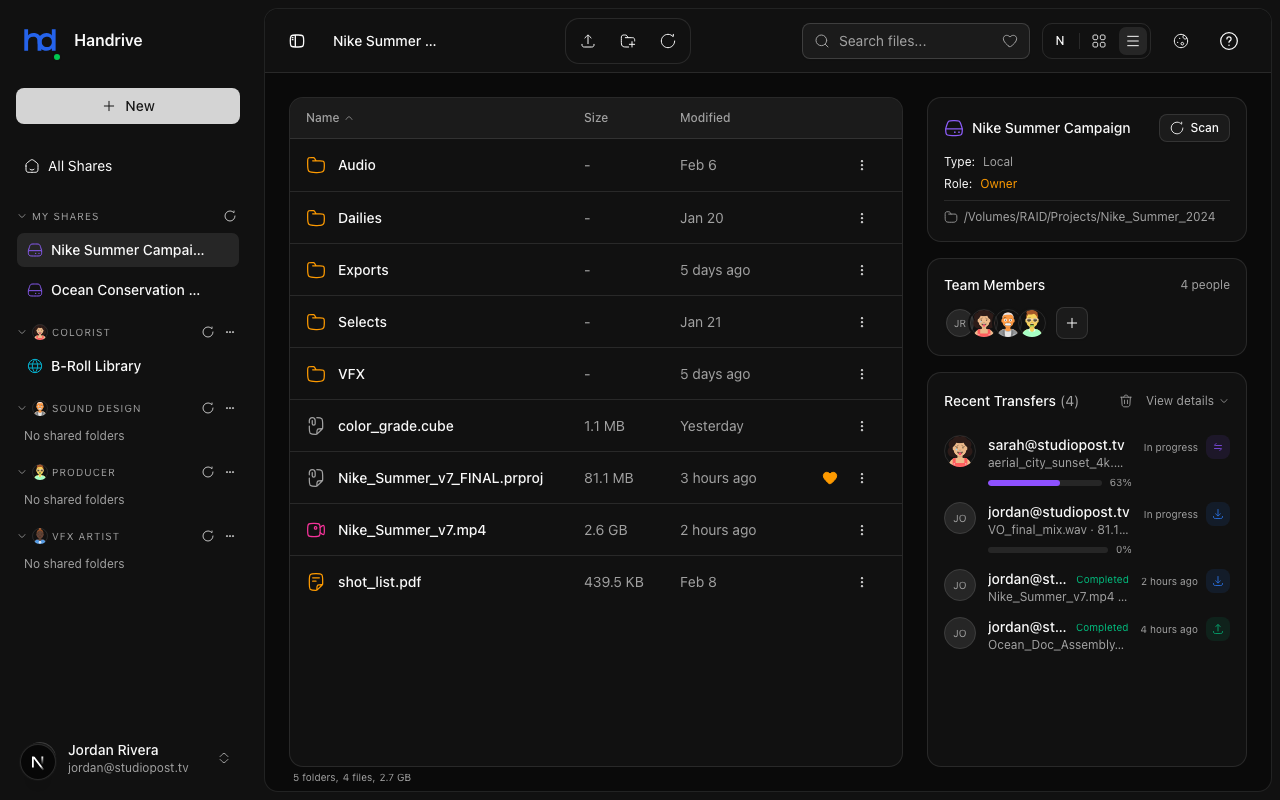
Opening a Share
Click any share in the sidebar to browse its contents. The main content area shows the files and folders.
Navigation
Breadcrumb Navigation
The breadcrumb trail at the top shows your current location:
Share Name > Folder > Subfolder > Current Location
Click any part of the breadcrumb to jump back to that level.
Folder Navigation
- Double-click a folder to open it
- Use the breadcrumb to go back
- Click All Shares in the sidebar to return to the shares overview
View Modes
Toggle between views using the button in the header:
Grid View
- Files displayed as cards in a grid
- Shows file icon/thumbnail, name, and quick actions
- Good for visual browsing, especially images
List View
- Files in a detailed table
- Columns: Name, Size, Modified Date
- Better for managing many files
- Click column headers to sort
File Information
Each file displays:
- Icon - File type indicator
- Name - File name with extension
- Size - File size (in list view)
- Modified - Last modified date (in list view)
- Star - Yellow star if favorited
Selecting Files
Single Selection
Click a file to select it.
Multiple Selection
- Ctrl/Cmd + Click - Add/remove individual files from selection
- Shift + Click - Select a range of files
- Ctrl/Cmd + A - Select all files in current folder
Action Bar
When files are selected, an action bar appears with options:
- Download
- Copy
- Star/Unstar
- Tag
- Delete
File Context Menu
Right-click a file for options:
- Open in Finder/Explorer
- Download
- Copy
- Rename
- Star/Unstar
- Edit Tags
- Delete
Empty Folders
If a folder is empty, you'll see a message with options to:
- Upload files
- Create a subfolder